

















Do you know Apple Maps automatically tracks your location history? Here’s a step-by-step guide on how to disable the feature.
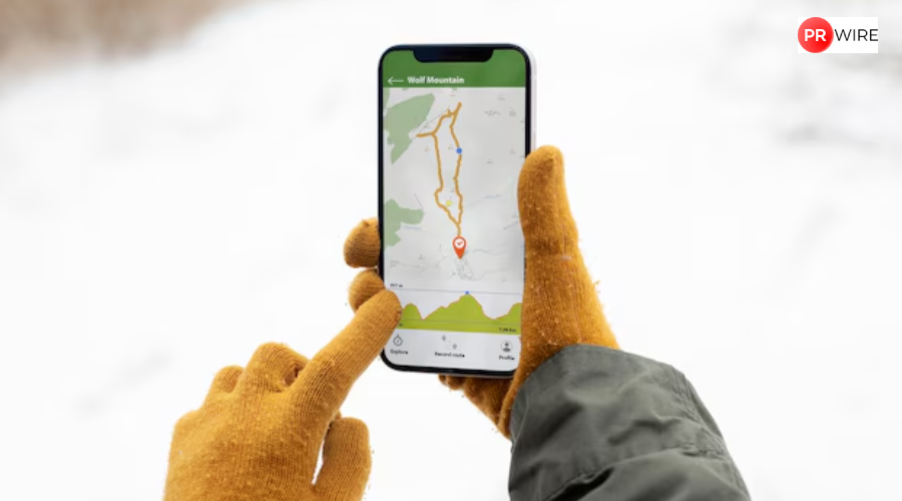
Apple Maps on your iPhone will likely be tracking the places you visit, due to this new feature. Reportedly, the iOS 26 update rolled out a feature called Visited Places/preferred routes and predicted destination, which keeps track of places you’ve visited. Although this is an opt-in feature, but when enabled it helps users revisit the place on Maps or share the location with others. While the feature is announced for easier navigation to the most visited places, many iPhone users may not feel comfortable with the app tracking their movements. Hence, you can easily disable the Visited Places feature on your mobile and clear your history.
How do Visited places/preferred routes and predicted destination work on Apple Maps?
According to Apple, the Maps app on iPhone automatically tracks the user’s location history with a feature called Visited Places. It is worth noting that this feature is currently not available in India. However, an opt-in version named preferred routes and predicted destination can provide a similar experience in the country.
It creates a list of these places, allowing users to seamlessly view, manage and organise their most visited or favourite places. These locations can also be shared, and users can add notes. Apple says that this list of visited places is end-to-end encrypted. However, many users do not want any application tracking their activities. Therefore, if you want to disable the Visited Places feature, here’s a simple step-by-step guide you can follow.
How to disable the Visited Places/ preferred routes and predicted destination feature on iPhone
Step 1: Go to the Settings app on your iPhone.
Step 2: Open Apps and select Maps
Step 3: Now, click on Location Services.
Step 4: Now go to Allow More Location Services and click on “Visited Places” or “preferred routes and predicted destination.
Step 5: Simply turn off the toggle, and it will stop tracking.
Once the toggle is turned off, Apple Maps will stop tracking the places you visit. On the other hand, you can also clear the Visited places history to clear data.
How to clear the Visited Places history
Step 1: Open Apple Maps on your iPhone
Step 2: Click on Places and go to “Visited Places”
Step 3: Scroll down, and click on “Clear History” ( Make sure to click on Clear All)
Doing so will help you erase the location history, maintain your privacy and restrict apps from tracking.
The article originally appeared on Hindustan Times